Curriculum
Content Posting
Fail to Plan – Plan To Fail
0/3

Scheduling Tools
0/4
Content Engagement
0/3
Insights & Analytics
0/1
Using Facebooks Planner
The final tool we are covering for scheduling your Social Media marketing post scheduling is Facebook’s Planner or Metas Business Suit’s Scheduler. From these three options you should be able to select one to help you create a system and process and move on with growing your business and keeping your customers happy.
Why should you schedule Facebook posts in the first place?
Scheduling Facebook posts can help you save time, ensure your content is published when your audience is most engaged, and help you post consistently when you’re managing multiple social media profiles at the same time.
When you share content frequently, customers will think of your business when they’re ready to to work with you. Meta Business Suite enables you to create and schedule posts so you can stay connected with your community while you focus on other business goals.
Meta Business Suite is free to use, so it’s a product every small business can take advantage of. It streamlines the process of working within Facebook and Instagram, which can help make your team more efficient with their time. You access Business Suite either on desktop or through the mobile app.
Some of the benefits from Meta’s free tool include:
- Viewing notifications
- Responding to comments and messages
- Creating or scheduling posts, Stories, and ads
- Receiving insights, tips, and “goals” that can help you optimize your performance
- Utilising the planner
Before you begin:
- Make sure that you’re working in the correct account. To select a different Facebook Page and Instagram account in Meta Business Suite, click the drop-down menu in the top left of your sidebar.
- Select the Facebook Page and Instagram account that you want to create and schedule posts for.
Getting Started With the Meta Business Suite Scheduler
- From either the Business Suite home screen or the posts & stories screen,
- Click Create post.
- Indicate whether you want the post to show up on Facebook, Instagram or both.
- Under Media, select a photo or video for the post.
- Under Post details, in the box labelled Text, write a caption.
- Preview your post and make any desired changes.
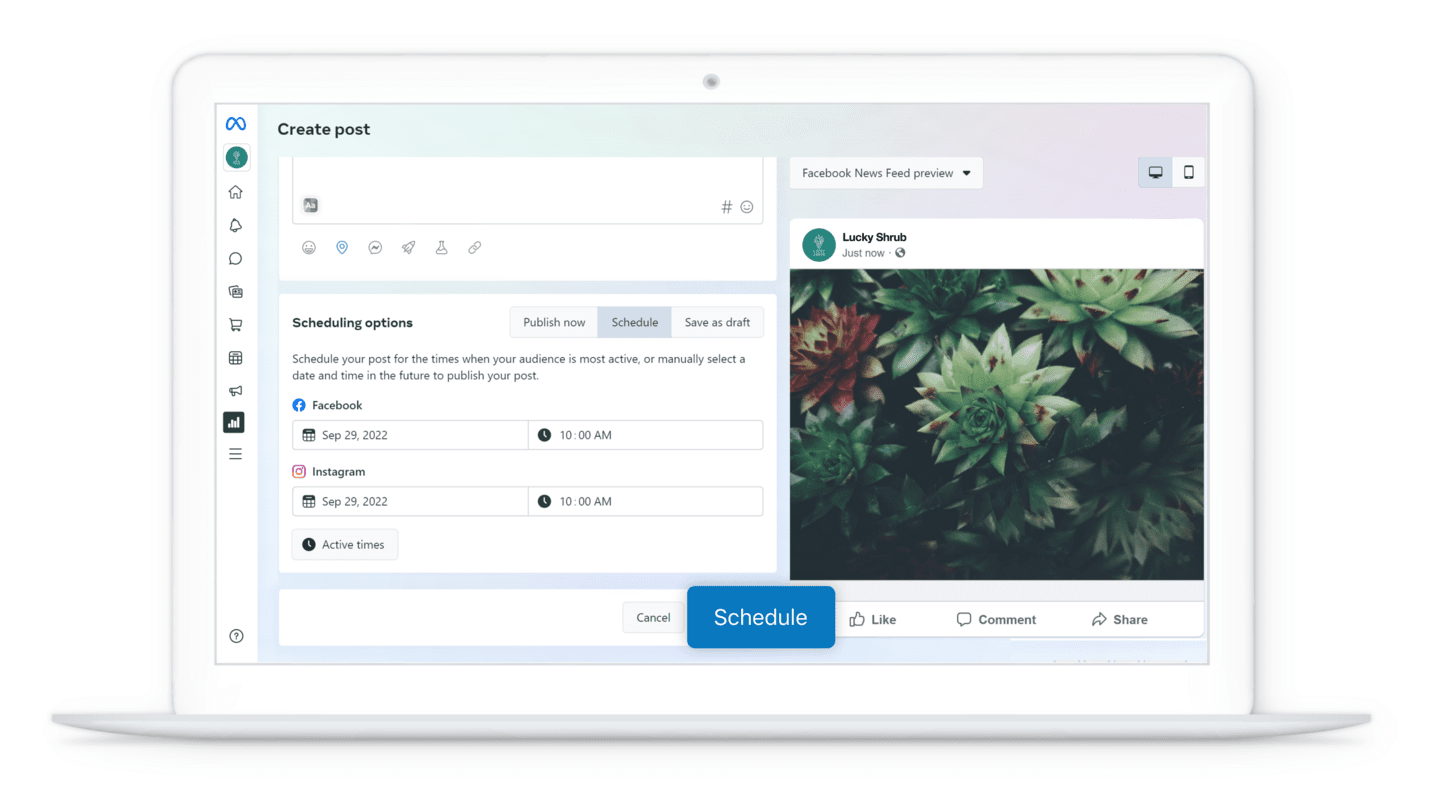
- Under Scheduling options, click either:
- Publish now, then click Publish to publish the post immediately.
- Schedule, to publish at a later date and time.
- Save as draft, and publish later.
How to create a post with Meta Business Suite
- Before you publish, you can see how your posts will look on Facebook and Instagram. Check how many people view your posts on Facebook desktop, Facebook for mobile and Instagram mobile, and optimise your posts for the most popular format.
- If you want to schedule a post for the future, create your post in Meta Business Suite and click Schedule post. You can select the date and time you want your post to publish. To view your scheduled post, select Scheduled on the posts & stories page.
- Before you publish, you can see how your posts will look on Facebook and Instagram. Check how many people view your posts on Facebook desktop, Facebook for mobile and Instagram mobile, and optimize your posts for the most popular format.
How to create and schedule story updates
Stories on Facebook and Instagram help connect people to the brands and products they love. The story format provides a great way to deliver information quickly and showcase your business as you share meaningful moments through photos and videos that appear on your account for 24 hours. Schedule your story to publish later to save time and share content consistently. Here’s how to schedule a story from a mobile device.
- Tap the + icon.
- Add media, like an image or video. You can select multiple images or videos at once if you’d like.
- Add text, stickers, GIFs and more. You can reposition and resize these elements on your screen.
- Tap Share on.
- Select the placement of your story. You can select your Facebook Page, Instagram account or both.
Select an option:
- To publish your story immediately, tap Share.
- To schedule your story to publish later, tap Schedule for later.
- Select the date and time you want your story to post.
- Tap Done.
- Tap Schedule to finish.
Troubleshoot posts
You may experience an error when creating or scheduling a post. Here are some possible causes and self-troubleshooting steps:
- If your post involves an Instagram platform, log in to your account in the Instagram app and check if there are any pop-up messages.
- If there are pop-ups, follow the steps in the pop-up messages to unblock the issue.
- Once complete, return to Meta Business Suite and try publishing or scheduling your post again.
- Make sure that you have authorised access to publish posts here: Get authorised to post or interact as your Page
- If your issue is related to scheduling posts, you might need to verify your business

